OIDC groups authorization
Copy MarkdownLivebook Teams allows you to control access to your Livebook app servers and Livebook apps based on group membership in your OIDC identity provider (IdP). This enables you to implement a Role-Based Access Control (RBAC) model for your Livebook deployment.
Livebook version requirement
Requires Livebook v0.18 or newer.
Overview
OIDC groups authorization enables you to:
- Restrict access to your Livebook apps and app servers based on group membership
- Limit access to apps that belong to specific app folders so groups of users only have access to what they're authorized to see
- Integrate seamlessly with your existing OIDC SSO provider (Okta, Microsoft Entra, Google etc.)
Prerequisites
Before configuring OIDC groups authorization, ensure you have:
Configured an OIDC provider in your Livebook Teams organization. If you haven't done this yet, follow the instructions in our OIDC SSO documentation.
Configured your OIDC identity provider to include group information in the ID tokens:
- Okta: Customize tokens with a groups claim
- Google Workspace: No additional configuration is required; just ensure you've already followed these instructions
- Others: Search your identity provider's documentation for how to add a groups claim to the ID token
Configuration
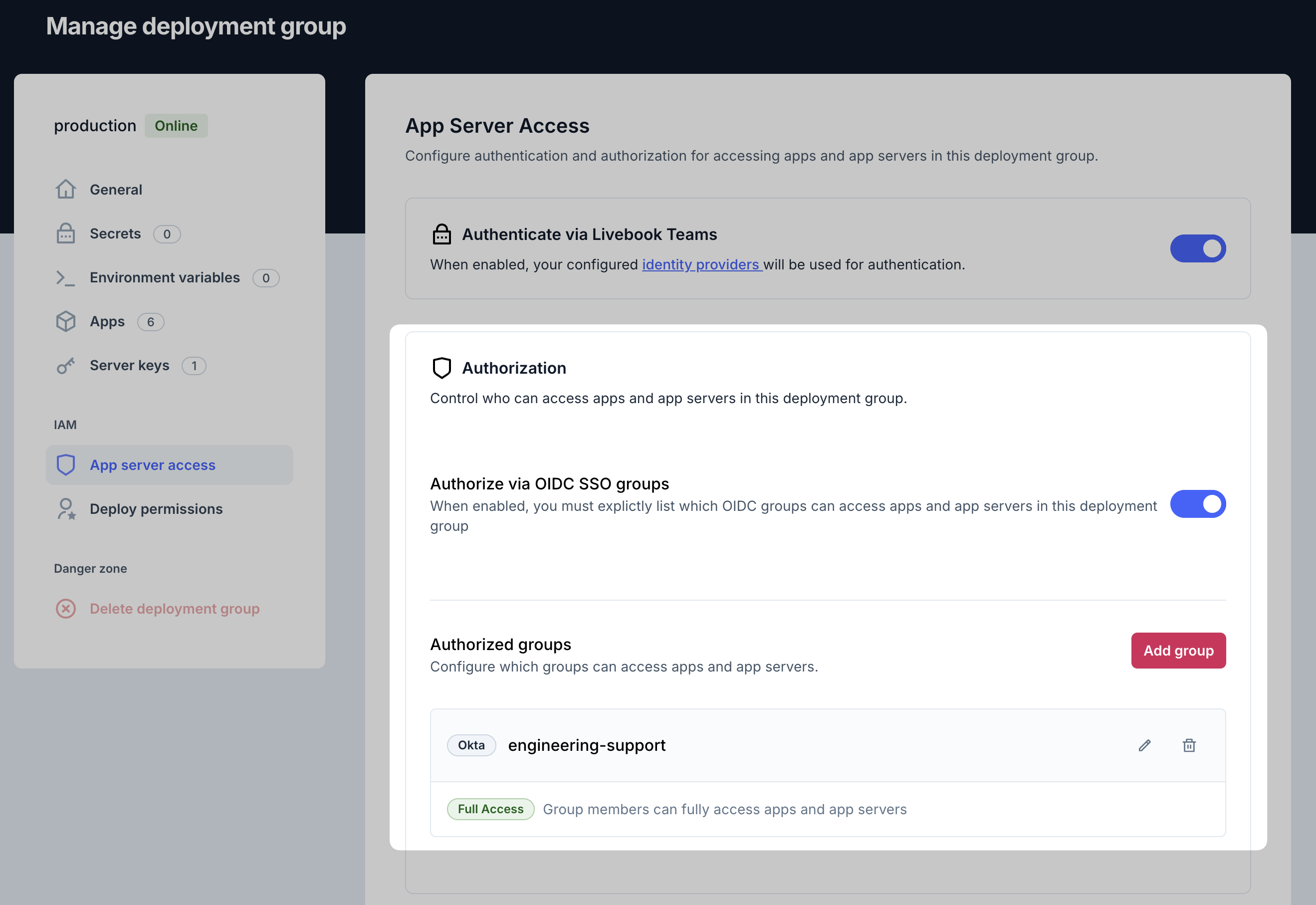
1. Enable authorization via OIDC SSO groups
To enable authorization via OIDC SSO groups for a deployment group:
- Log in to Livebook Teams
- Navigate to the Deployments panel
- Click Edit on the deployment group where you want to enable authorization
- Go to the App server access section (requires "admin" role in the organization)
- Ensure that Authenticate via Livebook Teams is enabled
- Enable Authorize via OIDC SSO groups
2. Add group authorization
Once authorization is enabled, you can add group access rules:
- Click the Add group button
- Select one of your configured OIDC identity providers
- Enter the name of a group from your identity provider
- Choose the Access type for this group:
- Full access
- App folder access
- Click the Add group button to save the rule
You can create multiple group authorizations with different access types to set up your authorization strategy.
Access types explained
Full access
Users who belong to groups with full access can access:
- The app server admin interface*
- All Livebook apps deployed to this deployment group
*Note that Admin authentication configuration will also apply if configured.
App folder access
Users who belong to groups with app folder access can only see and open apps from the selected app folders.
This allows you to implement role-based access control using groups from your identity provider.
Testing the Configuration
To verify the configuration is working:
- Sign out of any current Livebook Teams sessions
- Navigate to an app server or Livebook app in the deployment group where you've enabled OIDC groups authorization
- You will be prompted to authenticate through your OIDC provider
- After authentication, the system will check your group membership
- You will only be granted access if you belong to one of the configured groups with appropriate permissions
Troubleshooting
If users are experiencing access issues:
- Verify the group name matches exactly as defined in your IdP (group names are case-sensitive)
- Check that the user is a member of the specified group in your IdP
- Ensure your OIDC provider is properly set up to include group names inside the ID token